AI Image Extender Landscape Guide: Extend Sky & Horizon
Use an AI image extender landscape workflow to extend sky, expand horizon lines, uncrop landscape photos, and create AI panorama crops without quality loss.
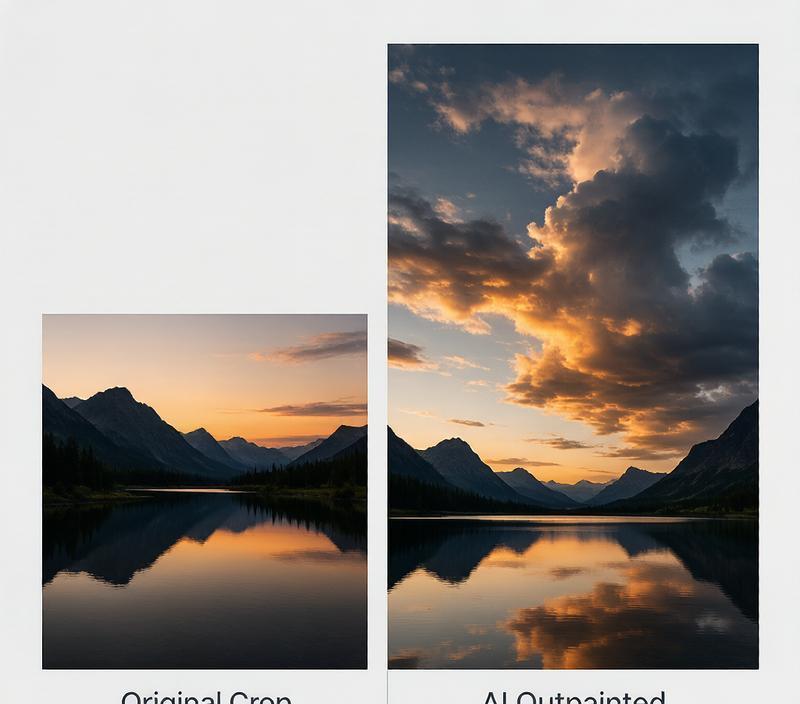
Last summer I shot a sunset at Torres del Paine. Golden light, perfect reflection on Lago Nordenskjöld, the Cuernos silhouettes cutting into orange clouds. One problem: I framed too tight. The peaks were cropped at the top, and the full expanse of Patagonian sky I remembered wasn’t in the frame.
A year ago I would’ve trashed the shot or spent 45 minutes in Photoshop cloning sky gradients and hoping nobody noticed. This year? I ran it through an AI image extender. 30 seconds later the sky was complete, the peaks had breathing room, and the reflection extended naturally into the water. The AI didn’t just fill pixels — it understood the scene well enough to continue a Patagonian sunset.
That’s what AI outpainting does for landscape photography now. It gives you back the photo you thought you took.
If you’re searching for an AI image extender landscape workflow, the practical jobs are usually clear: expand horizon lines, extend sky above a tight crop, create an AI panorama from a single frame, or uncrop landscape photos for web and social formats without making the generated edges look fake.
What AI Outpainting Actually Does for Landscape Photos
AI outpainting — also called AI image extension, uncropping, or generative expand — uses a trained model to predict and generate pixels beyond the original image borders. Unlike basic content-aware fill that copies and blends nearby pixels, outpainting models work in “latent space”: a compressed representation of the image where the AI understands concepts like “mountain ridgeline continuing at this angle” or “sky gradient shifting from orange to deep blue at this rate” rather than just copying colors.
When you extend a landscape photo, the model analyzes the scene’s:
- Light direction and quality — where the sun is, how shadows fall
- Atmospheric perspective — how distant objects fade and shift color
- Geometric continuity — ridges, horizons, water lines, tree canopies
- Texture patterns — clouds, foliage, water surfaces, rock formations
A 2026 test by Claid.ai compared 17 AI outpainting tools on the same landscape-expansion tasks. Their finding: while nearly every tool handled simple one-tone backgrounds well, only a handful maintained realistic results when extending complex natural scenes with varied textures and lighting conditions (Claid.ai, 2026).
The biggest quality drop occurred with mixed-content scenes — photos containing both natural elements (sky, water) and man-made objects (buildings, fences). The transition zones between generated and original pixels are where most tools fail.
Four Ways Landscape Photographers Use AI Image Extension
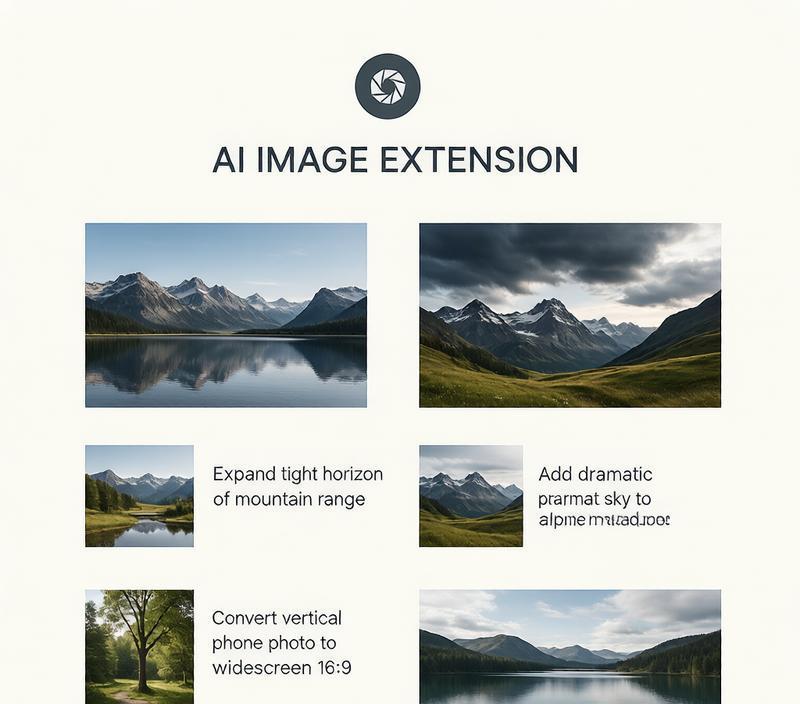
1. Expanding a Tight Horizon
You shot wide but not wide enough. The mountain range fills the center, but the valley on both sides is cut off. An AI extender can add 20–30% width to each edge, revealing valley floor, distant ridges, and atmospheric haze that matches the original.
The key technique: expand in small increments. AI outpainting models produce their most convincing results when asked to add 20–30% per pass, using the previous output as input for the next. One landscape photographer documented this workflow on the Skylum blog: start with the original, extend 25% on each side, then repeat with the expanded image as the new source until reaching the target ratio.
2. Adding Dramatic Sky
Maybe you composed for the foreground — an alpine meadow or a shoreline — and the sky ended up as a thin strip at the top. AI outpainting can add 50–100% more sky area, continuing the cloud formations, color gradient, and light pattern upward.
This is the use case where outpainting shines brightest because sky patterns are relatively predictable for AI models. Clouds follow wind patterns, colors shift along temperature gradients, and there’s no complex geometry to maintain. The results are consistently natural.
3. Converting Vertical to Horizontal
Landscape photographers shooting with phones often end up with vertical (9:16) compositions. Converting these to 16:9 widescreen without cropping away the subject requires extending both sides — and the AI needs to generate content that makes sense in context.
A vertical photo of a lighthouse on a cliff, for example, needs the cliff extended left and right while maintaining the ocean horizon line, wave patterns, and consistent rock texture. Modern AI models handle this well when the original has enough visual information on the edges to work with.
4. Creating Panoramic Format from a Single Shot
Traditional panoramas require either a specialized panoramic camera, a gimbal, or stitching 5–10 overlapping shots with software. AI outpainting offers a simpler path: take one good shot with the subject centered, then extend both sides progressively to create a 21:9 or wider cinematic frame.
The result isn’t a replacement for true multi-shot panoramas — fine details in the extended areas won’t match the resolution of native pixels — but for web use, social media banners, and prints up to moderate sizes, the quality is often indistinguishable at normal viewing distances.
AI Image Extender Tools Compared
| Tool | Starting Price | Landscape Performance | Best For |
|---|---|---|---|
| AI Image Extender | Free (5 credits/mo) | Strong on sky/horizon, handles 6 aspect ratios | Quick aspect ratio conversion without Photoshop |
| Adobe Photoshop (Generative Expand) | $22.99/mo | Industry-leading, but complex workflow | Pros already in Creative Cloud |
| Claid.ai | $9/mo | Excellent on natural scenes | E-commerce + landscape hybrid use |
| Runway | $12/mo | Good creative output, flexible | Complex scenes needing post-edit |
| Stable Diffusion (ComfyUI) | Free (open source) | Strong with custom workflows | Tech users with 8GB+ GPU |
| PromeAI | $19/mo | Good for social media ratios | Social media creators |
Price data sourced from vendor pricing pages as of June 2026. Free tools often limit resolution or add watermarks.
Adobe Photoshop’s Generative Expand, powered by the Firefly AI model, remains the professional benchmark — but at $22.99/month and requiring the full Creative Cloud install, it’s overkill for someone who just needs to fix a tight crop on vacation photos or convert a landscape shot for a YouTube thumbnail.
A dedicated AI image extender handles the same task in seconds through a browser, at a fraction of the cost. You upload, select the target ratio — 16:9 for YouTube banners, 4:5 for Instagram portrait, 1.91:1 for Facebook link previews — and the tool generates the extended image.
The video above walks through three free AI photo extender tools and shows side-by-side comparisons of landscape, portrait, and product photo expansions.
Step-by-Step: Extend a Landscape Photo from 1:1 to 16:9
Here’s a workflow that consistently produces natural-looking results:
-
Start with the highest-resolution original you have. AI models work with more data when source pixels are abundant. If your original is low-res, upscale it first (tools like Real-ESRGAN can boost resolution 2–4x before expansion).
-
Load into your AI image extender. Choose a tool that offers preset aspect ratios — selecting 16:9, 4:5, or 9:16 directly avoids manual math on pixel dimensions.
-
Extend in 20–30% increments. Rather than jumping from square to ultrawide in one pass, extend each side by a moderate amount, then use the result as the new input. This iterative approach produces fewer artifacts — a technique documented by the AI Photo Generator outpainting guide.
-
Check the transition zones at 100% zoom. The seam between original and generated content is where artifacts appear: mismatched light direction, repeated patterns, or “AI texture” — a subtle plastic-like smoothness that reveals synthetic generation.
-
Generate 3–4 variants and pick the best. Most tools let you run multiple generations per image. Small differences between variants — a more convincing cloud shape, a better horizon continuation — make the difference between “obviously AI” and “can’t tell.”
-
Final upscale if needed. After reaching the target ratio, one more upscale pass brings the expanded image to print or high-DPI display resolution.
Common Mistakes That Make Extended Photos Look Fake
One-pass max expansion. Jumping from 1:1 to 16:9 in a single generation is the single biggest cause of visible AI artifacts. The model has too much empty canvas to fill and too little context to ground its predictions. Break it into 2–3 smaller expansions.
Ignoring light direction. The AI model can’t read EXIF data to know where the sun was. If the original has strong directional light (sunset from the left, for example), verify that the extended areas maintain the same shadow angles and highlight positions. Mismatched light is the most common giveaway in AI-extended landscape photos.
Over-expanding beyond 100% per side. Extending more than the original width on either side pushes even the best models beyond their reliable range. If you need a massive expansion, start with a wider original or accept that some manual touch-up will be necessary.
Skipping the zoom check. At thumbnail size, most AI expansions look fine. At 100% zoom, you’ll spot repeated cloud patterns, unnatural texture smoothness, and edge artifacts that viewers will notice on larger screens.
Beyond Landscapes: Other Uses for AI Image Extension
While landscape photography benefits the most from outpainting, the same technology works across multiple photo types:
- Real estate photos — extend tight room shots to 16:9 listing format, preserving window light and wall texture (see our real estate guide)
- Product photography — turn a 1:1 product hero into a 1.91:1 banner for Shopify or Amazon without re-shooting
- Social media — convert one photo into 6 platform ratios (Instagram 4:5, Stories 9:16, Twitter 16:9, LinkedIn 1.91:1, Facebook OG)
Our tool handles all of these with pre-set ratios for every major platform — no manual pixel math required.
Frequently Asked Questions
Can AI really extend a landscape photo without making it look fake?
Yes, when done right. The Claid.ai benchmark tested 17 tools and found that the top performers produced results indistinguishable from original photos at normal viewing distances for landscapes, simple interiors, and product shots with plain backgrounds. The quality depends on three factors: the tool’s AI model quality, the expansion ratio (smaller increments produce better results), and the scene complexity. Natural landscapes with organic textures (clouds, water, foliage) tend to generate more convincing results than architectural scenes with strict geometric patterns.
Will AI image extension reduce my photo’s resolution?
The original portion of the photo maintains its native resolution. The generated extension areas are synthesized at the same pixel density, but their effective resolution depends on the AI model’s output quality. Running a 2–4x AI upscale pass after expansion (using tools like Real-ESRGAN or the built-in upscaler in your image extender) brings the entire image to a consistent high resolution suitable for print. Most dedicated AI image extenders now include one-click upscaling.
What’s the difference between outpainting and content-aware fill?
Content-aware fill (like Photoshop’s legacy tool) samples nearby pixels and blends them into the expanded area — it’s essentially smart copy-paste. AI outpainting generates entirely new pixels based on learned visual concepts. Content-aware fill might give you 20 extra pixels of sky gradient before the pattern becomes obvious; outpainting can generate 500+ pixels of new sky with natural-looking cloud formations because it understands what “sky continuing at sunset” looks like conceptually, not just what color the adjacent pixel is.
How much does an AI image extender cost?
Free options exist but typically limit resolution or add watermarks. Paid tools range from $9/month (Claid.ai) to $22.99/month (Adobe Photoshop). AI Image Extender offers 5 free credits monthly after signup, with packs starting at $4.99 for 30 credits and subscriptions from $12.99/month for 100 monthly credits — making it one of the most affordable dedicated options for photographers who need regular aspect ratio conversions.
Can I use AI outpainting for commercial landscape photography?
Yes. Tools like Adobe Firefly (via Photoshop Generative Expand) explicitly train on licensed content for commercial safety. When using other tools, check their terms of service regarding commercial use and AI-generated content licensing. The output from most modern AI image extenders is licensed for commercial use under standard terms — but the legal landscape around AI-generated content is still evolving, so keeping documentation of your workflow (original photo + tool used + expansion ratio) is prudent practice.
Ready to give your landscape photos the frame they deserve? Try AI Image Extender free, upload any photo, and convert it to 16:9, 4:5, 9:16, or any of our 6 preset ratios in under a minute.